
I Wrote a plugin that attaches a hook to the login page and adds custom CSS.
The plugin can be administered from your admin menu “Settings/ASBRA Login Plugin”. Simply add your CSS rules and click the “Save Changes” button.
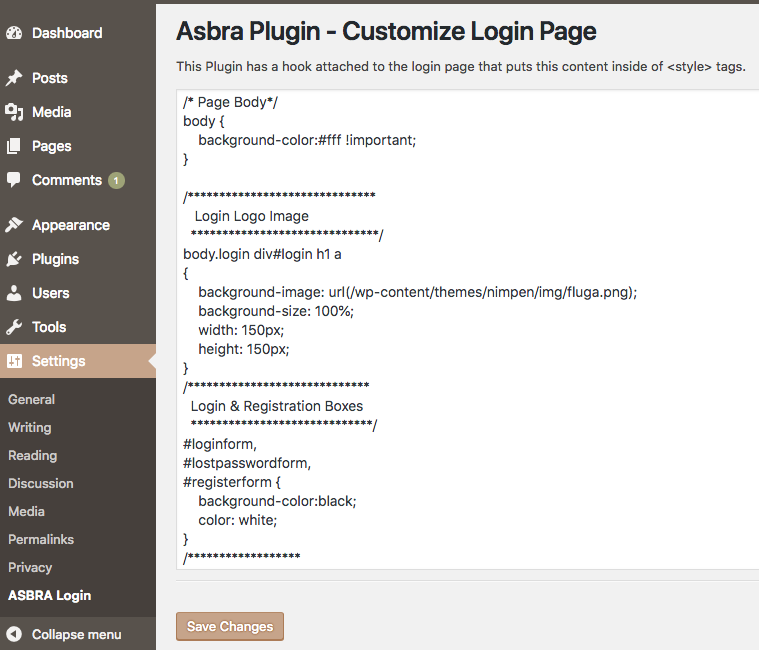
To build this plugin yourself, follow the below instructions:
# vim wp-content/plugins/asbra_login_plugin.php
<?php
/*
Plugin Name: ASBRA Login Plugin
Description: Customize your Login. See menu: Settings/ASBRA Login Plugin
Version: 0.1
*/

// Initiate an object, the __construct does the rest for you
$ab = new ASBRA_Login_Plugin();

class ASBRA_Login_Plugin {

    // BACKEND - Variables
    public $opt_name = 'asbra_name';            // Name of key in Database to hold Value
    public $page_title = 'ASBRA Login Page';    // Title of admin page
    public $menu_title = 'ASBRA Login';         // Title under settings menu
    public $capability = 'manage_options';		// https://codex.wordpress.org/Roles_and_Capabilities#manage_options
    public $menu_slug = 'asbra-login-plugin';	// GET Variable identifying admin page

    // FRONTEND - Variables
    public $hidden_field_name 	= 'asbra_form_hidden';
    public $data_field_name 	= 'asbra_form_name';

    function __construct()
    {
        // FRONTEND - Hook for Login Page CSS
        add_action( 'login_enqueue_scripts', array($this, asbra_login_css));

        // BACKEND - Hook for admin menu
        add_action( 'admin_menu', array($this, asbra_plugin_menu));
    }

    function asbra_login_css() // FRONTEND - Get css from Database
    {
        $opt_val = get_option( $this->opt_name );
        echo '<style type="text/css">' .$opt_val. '</style>';
    }

    function asbra_plugin_menu() // BACKEND - Place "ASBRA Plugin" in Settings menu
    {
        add_options_page( $this->page_title, $this->menu_title, $this->capability, $this->menu_slug, array($this, asbra_login_page) );
    }

    function asbra_login_page() // BACKEND - Admin Page Template
    {
        if ( !current_user_can( 'manage_options' ) )
                wp_die( __( 'You do not have sufficient permissions to access this page.' ) );

        $opt_val = get_option( $this->opt_name ); // Read in existing option value from database

        // Should we save a new value ?
        if( isset($_POST[ $this->hidden_field_name ]) && $_POST[ $this->hidden_field_name ] == 'Y' ) {

                $opt_val = $_POST[ $this->data_field_name ]; // Read their posted value

                update_option( $this->opt_name, $opt_val ); // Save the posted value in the database
                _e("Content has been updated!", 'asbra');
        }

        echo '<h1>'.__('Asbra Plugin - Customize Login Page', 'asbra').'</h1>';
        echo '<p>'.__('This Plugin has a hook attached to the login page that puts this content inside of <style> tags.', 'asbra').'</p>';
        ?>

        <form name="asbra_plugin_form" method="post">
            <input type="hidden" name="<?php echo $this->hidden_field_name; ?>" value="Y">
            <textarea style="width:100%" rows=25 name="<?= $this->data_field_name; ?>"><?= $opt_val; ?></textarea>
            <hr />
            <p class="submit">
                <input type="submit" name="Submit" class="button-primary" value="<?php esc_attr_e('Save Changes') ?>" />
            </p>
        </form>

        <?php
    }

} // END OF CLASS
Example of CSS to be pasted into your administration
/* Page Body*/
body {
    background-color:#fff !important;
}

/******************************
   Login Logo Image
  ******************************/
body.login div#login h1 a
{
    background-image: url(/wp-content/themes/nimpen/img/fluga.png);
    background-size: 100%;
    width: 150px;
    height: 150px;
}
/*****************************
  Login & Registration Boxes
  *****************************/
#loginform,
#lostpasswordform,
#registerform {
    background-color:black;
    color: white;
}
/******************
   Message Boxes
  ******************/
.login #login_error,
.login .message,
.login .success {
    border-left: 4px solid #ff0000 !important;
}